Introduction
If you have ever found yourself with 37 Chrome tabs open - and only a vague idea why half of them are there - you are not alone. "Tab overload" is a common problem in Chrome and other browsers, where countless open tabs lead to chaos. This tab clutter hurts productivity, causes stress, and even slows down your computer. In this post, we will explore why Chrome tab overload happens and share effective tips to manage too many open tabs. By the end, you will know how to bring order to your browser and work more calmly - especially with the help of a smart Chrome tab manager.
Why Too Many Chrome Tabs Is a Problem
Having numerous tabs open might feel like you are multitasking or keeping important info handy. In reality, it often backfires. Here is why excessive tabs become problematic:
- Performance Drain: Each open Chrome tab consumes memory (RAM) and CPU power. With dozens of tabs, Chrome eats up system resources, leading to slowdowns or even crashes. In fact, a study by Carnegie Mellon University found about 25% of participants had their browser or PC crash due to too many open tabs. Your computer simply struggles under the load of tab overload.
- Mental Overwhelm: Seeing a cluttered row of tiny tabs creates mental clutter. Your brain registers all those "unfinished tasks" lurking in the background, which can induce stress and frustration. Research indicates 82% of people find excessive tabs concerning, and stress can be triggered by as few as 8 tabs open at once. In short, a messy browser equals a distracted mind.
- Lost Focus & Productivity: Juggling many tabs encourages constant context-switching. You might jump between an email, a research article, and a social media feed all in the span of minutes. This multitasking reduces work efficiency by up to 40%. It becomes harder to focus deeply on one task when a chorus of other pages is one click away, each vying for attention.
- Risk of Losing Information: Ironically, people keep tabs open to not lose information - using tabs as a "to-do list" or reminder. But with too many, it is easy to lose track of which page had that key info or which ones you still need. The more tabs you accumulate, the easier it is to forget why you opened them in the first place.
Why We Hoard Tabs (And Why It Is Hard to Stop)
If tab overload is so bad, why do we let it happen? Understanding this can help us change the habit:
- Fear of Missing Out (FOMO): We often leave tabs open because we think we will need them later or might miss something important if we close them. This fear keeps adding "read later" tabs that rarely get revisited.
- Tabs as Reminders: Many users treat open tabs like an external memory or to-do list. For example, keeping a tab open with an article as a nagging reminder to read it. It provides a sense of control - but at the cost of clutter.
- "Sunk Cost" Fallacy: After investing time finding a webpage, we hesitate to close it. We feel we have put effort into these tabs (research, gathering resources), so we keep them open even if we are not actively using them.
- Constant Stimulation (ADHD angle): Some individuals (especially those with ADHD) leave many tabs open because the variety provides stimulation and engagement. Unfortunately, this can backfire - the overstimulation leads to scattered attention and overwhelm instead of focus.
Recognizing these impulses is the first step. Now, let us look at concrete ways to break free of Chrome tab overload without losing the info or context you care about.
Basic Tips to Tame Tab Overload in Chrome
Before introducing any new tools, start with built-in browser techniques to control tab chaos:
- Close Unneeded Tabs Regularly: It sounds obvious, but it is effective. Make it a habit to close tabs you are done with. If you worry about forgetting them, consider bookmarking them in a "Read Later" folder or saving links elsewhere.
- Use Chrome's Tab Search: Chrome has a handy tab-search feature (the small down-arrow icon or hitting Ctrl+Shift+A on Windows, Cmd+Shift+A on Mac) that lets you quickly find an open tab by title. This helps when you have many tabs - just type a keyword to jump to the tab you need. It does not reduce clutter, but it eases navigation.
- Try Tab Groups: Chrome's built-in Tab Groups allow you to cluster related tabs together under a labeled group (with color-coding). For instance, group all your "Travel research" tabs separately from "Work project" tabs. You can even collapse the group to hide its tabs when not in use. This reduces visual clutter since only the group name shows when collapsed. (Tip: Right-click a tab > "Add to new group", give it a name and color. Click the group name to collapse/expand.)
- Set Aside Tabs with "Reading List": Chrome's Reading List (built into bookmarks bar) lets you save pages to read later. Adding an article to the Reading List and closing its tab can alleviate overload while assuring it is saved for later.
- On Startup, Continue Where You Left Off: In Chrome settings, under On Startup, you can choose "Continue where you left off." This makes Chrome reopen all your last session's tabs after a restart. It is a safety net if your browser crashes, so you do not permanently lose an overstuffed session. However, this can also mean you are perpetually carrying the same overloaded session - so use with care.
These tips can help in the short term, but they may not solve the root issue: you might still accumulate too many tabs because Chrome alone does not provide an easy way to organize, save, and close sets of tabs in a structured manner. This is where a dedicated tab management tool shines.
Using a Tab Manager Extension to Cure Tab Overload
A Chrome tab manager extension is designed to bring order to browser chaos. These tools let you save groups of tabs for later and quickly reduce clutter without losing anything important. Instead of juggling dozens of open pages, you can offload them into the manager and open them only when needed.
One such solution is Nest - a Chrome tab manager built specifically to turn "tab overload into a calm, structured workflow". Let us see how using Nest (or a similar tab manager) helps solve tab overload:
- Organize Tabs into Categories (Groups): Nest allows you to sort your tabs into meaningful categories based on your projects or topics. For example, you might have categories like Work, Travel Planning, Research, Shopping, etc. You can move open tabs into a category and close them from the main view. Later, you can reopen the whole category or individual tabs when you actually need them. This way, you are only viewing the context relevant to your current task, and all other topics are tucked away (but not lost). Think of categories as persistent, savable tab groups on steroids. Your browser interface stays neat, and you can switch between workflows instantly without the distraction of unrelated tabs.
-
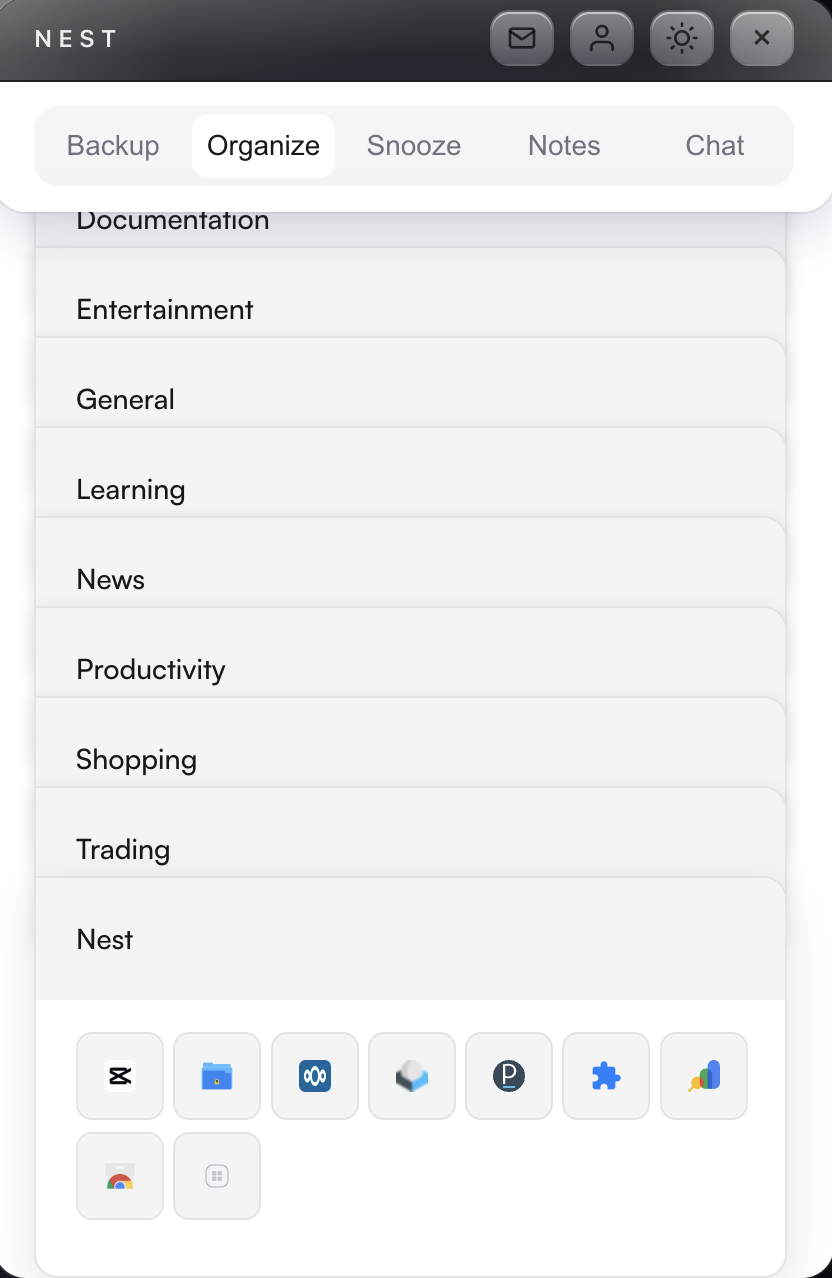
Nest's Tab Categories interface, showing organized groups of tabs for different projects. - Snooze Tabs to Hide Distractions: Another powerful feature is the ability to snooze tabs. Nest lets you temporarily put tabs (or entire categories of tabs) to sleep and have them re-open automatically later. Let us say you have some news articles or a social media tab open that is tempting you during work - just snooze them for a set time (e.g. snooze until this evening). They will disappear from Chrome now (reducing clutter and temptation) and pop back open when you are ready for them. Snoozing enables focus without fear: you can concentrate on the task at hand knowing your other tabs will return when needed, not simply vanish. It is a proven way to stay focused on what is relevant now.
-
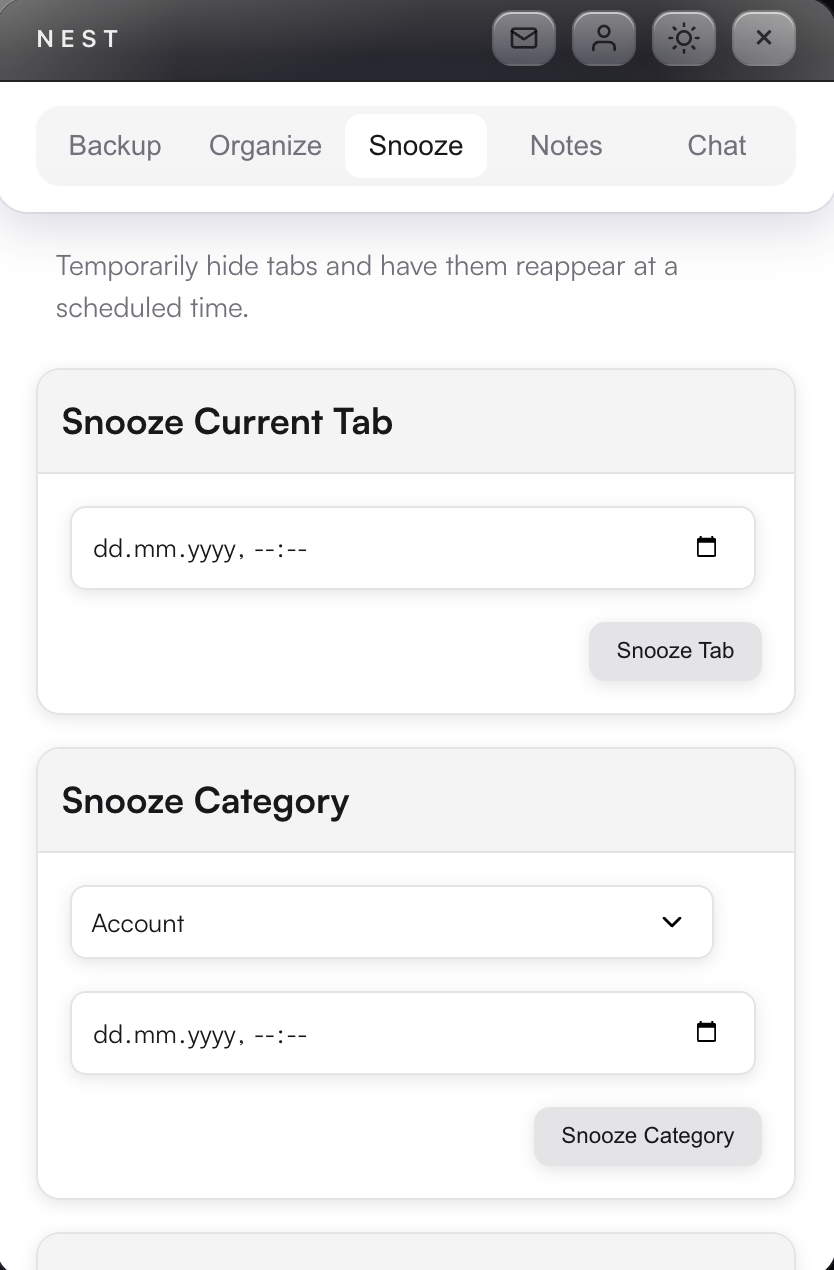
Scheduling a tab to snooze in Nest - e.g., snooze a YouTube tab until 6 PM, so it closes now and reopens at that time. - Session Backup & Crash Recovery: One reason people hoard tabs is fear of losing them in a crash. Nest addresses this by automatically backing up your tab sessions so you can restore them anytime. If Chrome crashes or you accidentally close a window, Nest can recover all your tabs exactly as they were - no panicked digging through history needed. This safety net means you can confidently close tabs or restart Chrome, knowing nothing will be permanently lost. It breaks the "must keep everything open forever" mindset that leads to tab overload. As an example, if you have sorted tabs into categories, Nest remembers those sets. After a reboot or crash, you can reopen your last session or any saved category with one click.
- Built-in Search and Quick Find: Good tab managers also offer quick search functionality. In Nest, you can search across all your saved tabs and categories by keywords, which is a lifesaver when you have a lot stored. Some even provide an AI-powered find - Nest's optional AI chat feature allows natural language search for tabs or categories ("find my article about climate data"). This means you do not need to keep everything open to know where it is; even closed tabs are easily findable. Compare that to vanilla Chrome, where once a tab is closed you would have to manually hunt through history.
In short, a tab manager offloads the clutter from Chrome's tab bar into an organized secondary space. It is like moving files from a messy desktop into a neat filing system. You still have access to everything, but your "workspace" stays clean and focused.
Practical Workflow: From 50 Tabs to 5 Tabs (Using Nest)
To illustrate, here is how you might use these techniques together to defeat tab overload:
- Categorize and Close: Take a look at your dozens of open tabs. Group them by theme or project. With Nest, create a category for each theme (e.g. "Project Alpha Research", "Marketing Ideas", "Misc Reading"). Drag or send each tab into the appropriate category. Once a category is set, close those tabs from Chrome - they remain safely saved in Nest's category, just not cluttering your window.
- Snooze Non-Urgent Stuff: Identify tabs that are not needed until later. Maybe a recipe you plan to cook tonight or a forum thread to check this weekend. Snooze those tabs in Nest - e.g., snooze the recipe tab to reopen at 5pm, and the forum tab to next Monday. As you snooze them, they will close now and be scheduled to pop back up at the set time.
- Focus on the Essential Tabs: Now your Chrome might have, say, only 5 tabs open - the ones directly relevant to what you are doing right now (perhaps one category that you are actively working on). Immediately, you will notice Chrome runs faster and your mind feels less scattered. Fewer visual distractions on the screen = more focus.
- Restore as Needed: When you finish a task or need to switch context, you can easily pull up the relevant group. If you need to return to "Project Alpha Research" tomorrow, open Nest and restore that category - all the tabs you saved for it will open up. Meanwhile, close or snooze the previous set. This way, you cycle through contexts without piling them all open at once.
- Enjoy a Calmer Browser: With this system, you are actively managing tabs rather than letting them accumulate. There is a place for everything: ongoing tasks are neatly categorized, future reading is snoozed, completed stuff is closed (or noted). You will avoid the dreaded scenario of squinting at dozens of tiny tab icons.
Conclusion: A Browser that Works for You, Not Against You
Tab overload in Chrome does not have to be your norm. By understanding the causes and using the right techniques, you can reclaim control of your browser. Start with simple habits like closing completed tabs and grouping related ones. Then, supercharge your workflow with a dedicated tool like Nest that keeps your tabs organized, backed-up, and out of your way until you need them.
A clutter-free, efficient browser can seriously boost your productivity and peace of mind. Instead of feeling overwhelmed or fighting a sluggish Chrome, you will have a streamlined setup tailored to your tasks. Remember: tabs are meant to help you, not stress you out!
Ready to turn chaos into order?
Take the next step and install Nest for Chrome - it is free - to experience a calmer way to work. Do not let Chrome tab overload bog you down. With smart tab management, you will browse better, work faster, and finally feel in control of all those tabs.